How to send a digital greeting card
The whole point of a CardWave eCard is that you can share it without ever opening a printer. This page is a practical guide to the digital side: how to send your card by text, email, WhatsApp, social, or DM in a way that actually lands — plus a short section at the end on printing if the recipient wants to keep one.
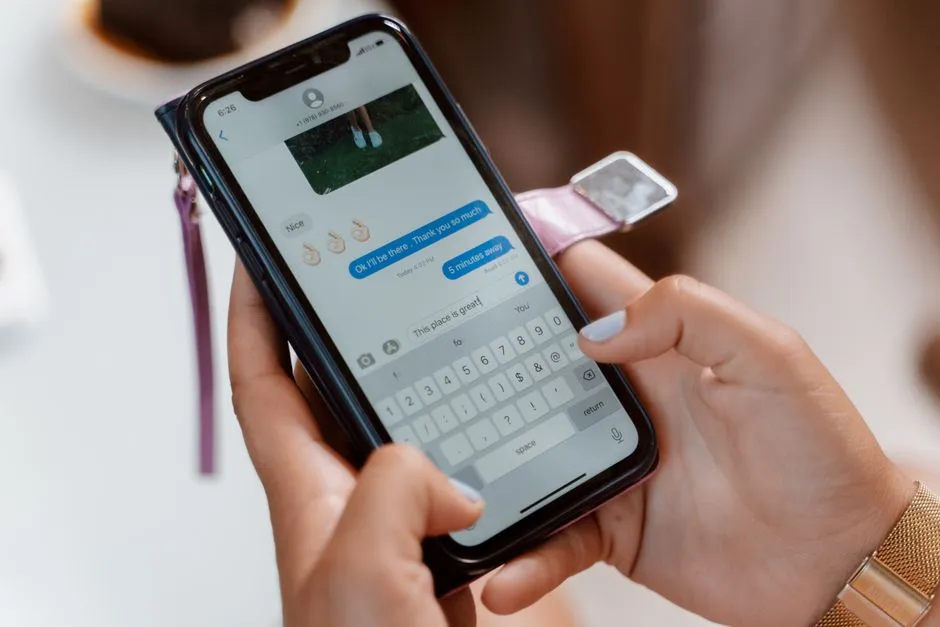
Send by SMS or iMessage
The fastest possible way to send a CardWave eCard is to paste the card page URL into a text. iMessage, Android Messages, and most third-party SMS apps automatically expand the link into a preview thumbnail showing the card. Tap and hold the link to confirm the preview before sending if you want — it loads in about a second.
- Tip: add one personal sentence above the link. The card carries the design and the sample message; your one line carries the relationship.
- Tip: if the recipient is on an older Android device or in a region with patchy preview support, take a screenshot of the card and attach the image directly along with the link.
Send by email
For email, you have two equally good options. The first: paste the card URL into the body of the email — Gmail, Outlook, Apple Mail, and most webmail clients render the share preview inline. The second: take a screenshot of the card preview, attach it inline (in Gmail, drag-drop into the message body), and add the link below for the recipient to open the full card.
Send via WhatsApp, Signal, Telegram, Messenger
The same URL approach works in every modern chat app. WhatsApp shows the card preview thumbnail when you paste the link. Signal and Telegram both fetch and display Open Graph previews. Messenger expands the URL into a rich preview card with the title, description, and image.
Share to social
For social, screenshot the card preview at the top of the card page, then post it to:
- Instagram Stories — the card thumbnail is sized for 1080×1920. Add a small text overlay with the recipient's name if you want to make it personal.
- Instagram Feed / Facebook — the preview also works at 1080×1080 (square crop).
- X / Twitter — paste the card URL and X automatically generates a 1200×675 preview card.
- LinkedIn — for professional thank-you and graduation cards, paste the URL into a post.
Group chats and family threads
The eCard format especially shines in group chats. A holiday card pasted into a family thread lands once for everyone, instead of fifteen individual texts. Lead with everyone's names if the chat is small, or just send the link with a single warm sentence if the chat is large.
Schedule across time zones
For holidays and birthdays where timing matters, queue the card to send at a specific time. iMessage on iOS supports Send Later. WhatsApp doesn't natively, but most third-party messaging apps and email clients (Gmail's Schedule Send) do. Aim for "morning of" the recipient's local time zone, not yours.
If the recipient wants to print or keep it
Every CardWave eCard page can be saved as a PDF (use your browser's Print → Save as PDF option) or downloaded as a screenshot for keeps. If the recipient wants to print a physical copy, the card prints best on 100lb matte cardstock at 100% scale on standard letter paper. The design is laid out at A2 (4.25" × 5.5" folded), so two cards fit per sheet with room for trim marks.
What not to do
- Don't blast the same card to a group of people in BCC — even if it's faster, it reads as a mass-send.
- Don't send a card without at least one personal sentence above it.
- Don't apologize for sending the card digitally. The eCard is the card.